Creating Pinterest pins that get clicks using Canva is not about design — it’s about structure.
Most beginners focus on aesthetics… but that’s exactly why their pins fail.
You’ve probably done this already — opened Canva, picked a nice template, added clean text, made it look aesthetic… and still got zero clicks.
That’s frustrating. And confusing.
Because everyone keeps saying: “Make your pins look pretty”
“Use good design”
“Stay consistent”
But here’s the truth no one tells you:
Pretty Pinterest pins don’t get clicks.
Structured Pinterest pins that get clicks follow a system.
If your pins look good but no one is clicking, you’re not missing effort — you’re missing a system.
In this guide, you’ll learn how to create Pinterest pins that get clicks using Canva with a simple, repeatable template system — even if you’re a beginner.
This post may contain affiliate links, which means I may earn a small commission at no extra cost to you. I only recommend tools and resources I genuinely find helpful.
Why Most Pinterest Pins Don’t Get Clicks
Before fixing your Pinterest pin design, you need to understand what’s actually going wrong.
Most beginners focus on:
- Fonts
- Colours
- Aesthetic layouts
But Pinterest is not a design platform.
It’s a scroll platform.
People don’t click because something looks nice.
They click because something grabs attention instantly.
If you’re struggling, you should also read this guide on how to get clicks on Pinterest pins using Canva
Here’s where most pins fail:
Mistake #1: No clear hook
You’re sharing information, not creating curiosity.
Mistake #2: Too aesthetic, not enough contrast
Soft designs don’t stand out in the feed.
Mistake #3: No structure
Your message isn’t clear in 1 second.
That’s why random Pinterest pin design advice doesn’t work.
You need a repeatable system.
The 3-Part Pinterest Pin Template That Gets Clicks
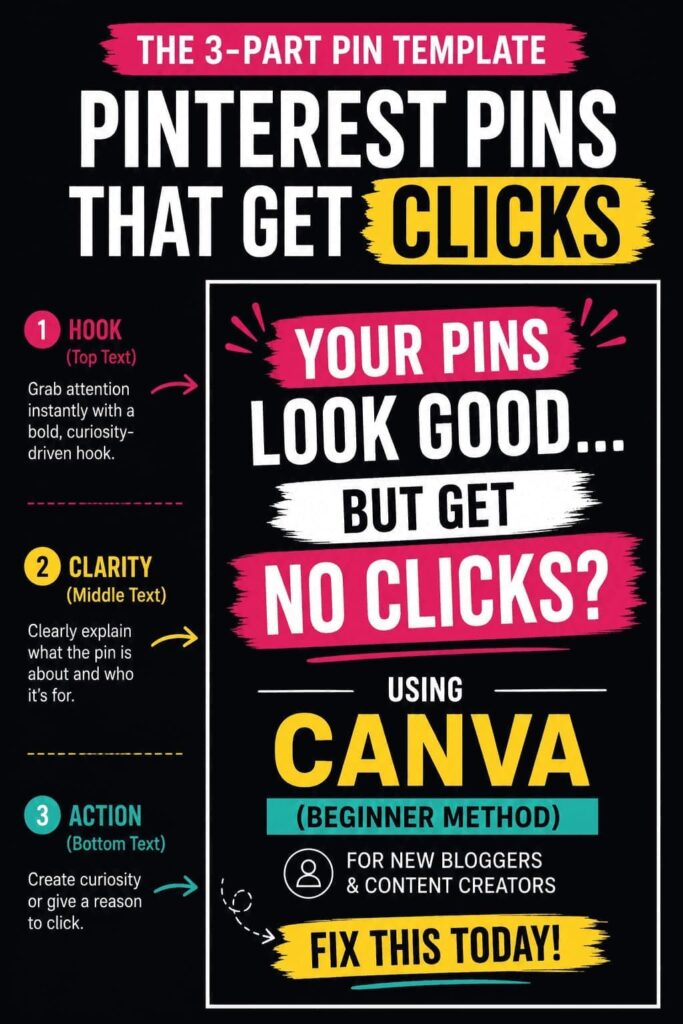
This is the exact structure used to create Pinterest pins that get clicks using Canva consistently.
1. Hook (Top Text)
This is the most important part.
Your hook should:
- Be bold
- Be clear
- Trigger curiosity
Examples:
- “Your Pins Look Good… But Get No Clicks”
- “Stop Making This Pinterest Mistake”
- “Why Your Pinterest Strategy Isn’t Working”
Weak hook = no clicks.
2. Clarity (Middle Text)
Now explain what the pin is about.
Examples:
- “Using Canva (Beginner Method)”
- “Simple Pinterest Strategy”
- “For New Bloggers”
This filters the right audience.
3. Action / Curiosity (Bottom Text)
This pushes the click.
Examples:
- “Fix This Today”
- “Do This Instead”
- “Start Now (Free Method)”
Don’t explain everything. Create curiosity.
Design Rules That Actually Increase Clicks
Most Pinterest pin design tips are overcomplicated.
Here’s what actually matters:
1. High contrast always wins
Dark background + white text = better visibility
2. Use one highlight color
Highlight key words only (yellow works well)
3. Bold fonts over fancy fonts
Readable = clickable
4. Clean spacing
Don’t overcrowd your design
For a deeper breakdown, read Pinterest pin design that actually gets clicks
Step-by-Step: Create Pinterest Pins Using Canva
Now let’s actually create one.
Step 1: Open Canva and choose Pinterest Pin size (1000 x 1500)
If you don’t want to waste time designing from scratch, you can use ready-made Canva templates to create Pinterest pins faster
Step 2: Add your 3-part structure
Top = Hook
Middle = Clarity
Bottom = Action
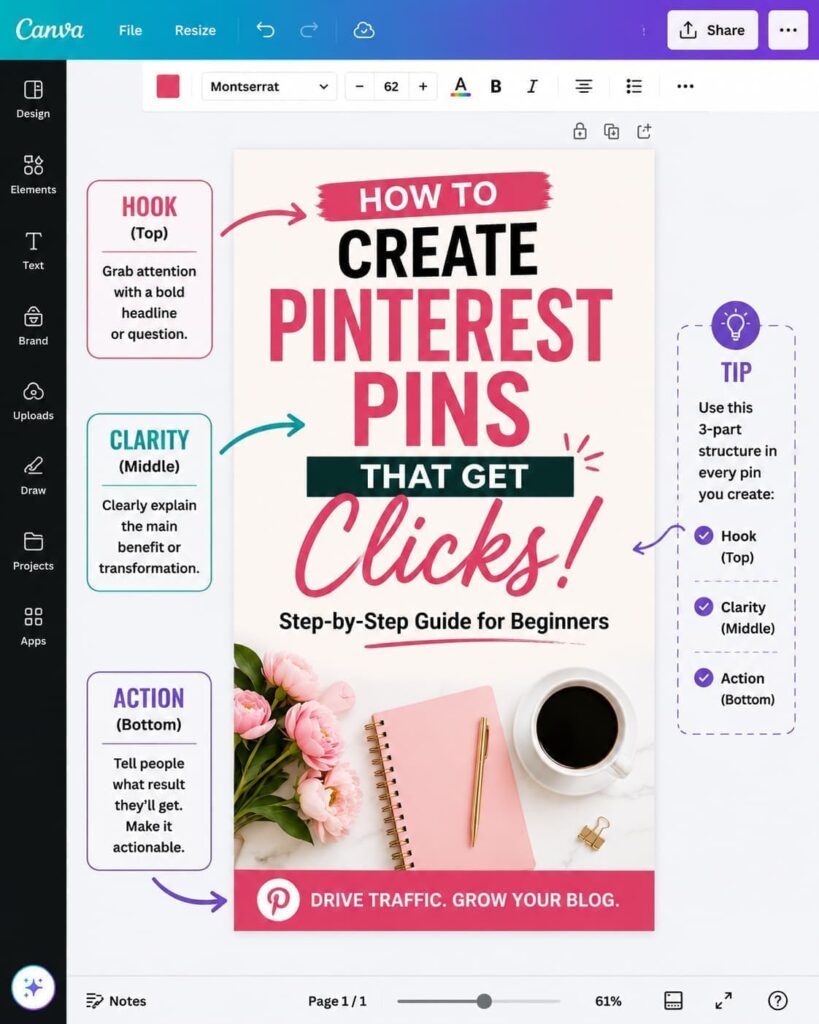
Step 3: Apply contrast
Use dark background + white text + one highlight color
Step 4: Adjust spacing and alignment
Step 5: Export and upload to Pinterest
If you want to design faster and create better-looking pins without overthinking, try Canva here
Bad vs Good Pinterest Pin Example
Let’s make this obvious.
Bad Pin:
- Soft colors
- Small text
- No hooks
- Looks aesthetic but unclear
👉 Result: No clicks
Good Pin:
- Bold hook
- Clear structure
- High contrast
- Easy to read instantly
👉 Result: More clicks
This is the difference between guessing and using a system.
Canva Free vs Pro (Quick Note)
If you’re unsure which version to use, read this: whether Canva Free or Pro is worth it for Pinterest blogging
Short answer: You can start free, but Pro makes everything faster and easier.
Final Thoughts
If your Pinterest pins aren’t getting clicks, it’s not because you need more tools or more effort.
It’s because you’re creating without a system.
Once you start using a structured approach, everything becomes easier:
- Faster design
- Better consistency
- More clicks over time
And the best part?
You can build this entire system using Canva.
If you’re serious about getting clicks from Pinterest, don’t just read this — actually apply it.
Start creating your first Pinterest pin using Canva here
Stop guessing. Start using a system. That’s how Pinterest actually starts working.
Leave a Reply